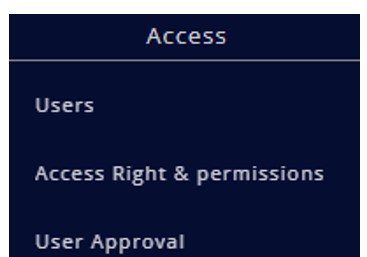
Skip to main contentAccess module will help you manage the users and user roles & permissions.
Users
Tab Title
Add a User
Edit User details
Delete a User
Password Reset
Resend Email
If you are the administrator, or if you have the privileges needed to create a user, you can do so through the Users module.
Users management
To manage the users, navigate to the Module via the side pane. Following details are displayed on the page:
- Users First Name
- Users Last Name
- User Email ID
- Roles and permissions
- Users status
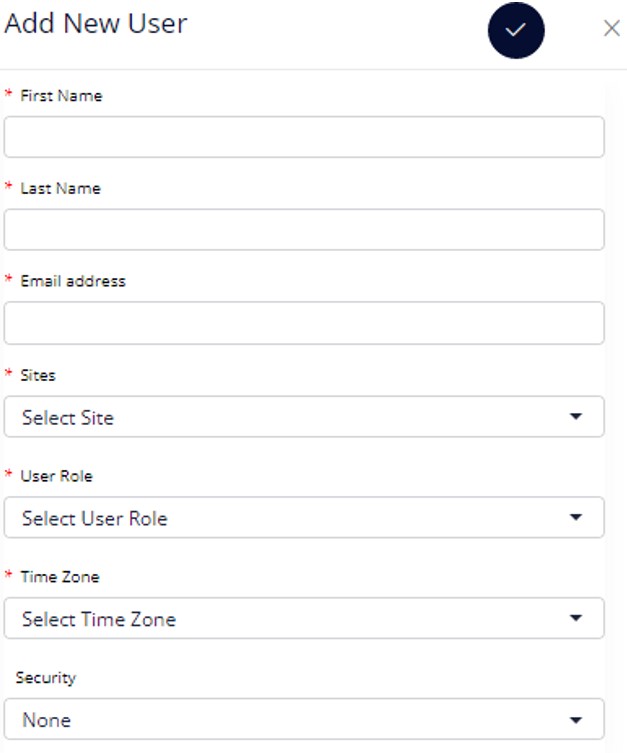
To add a new user, follow these steps.
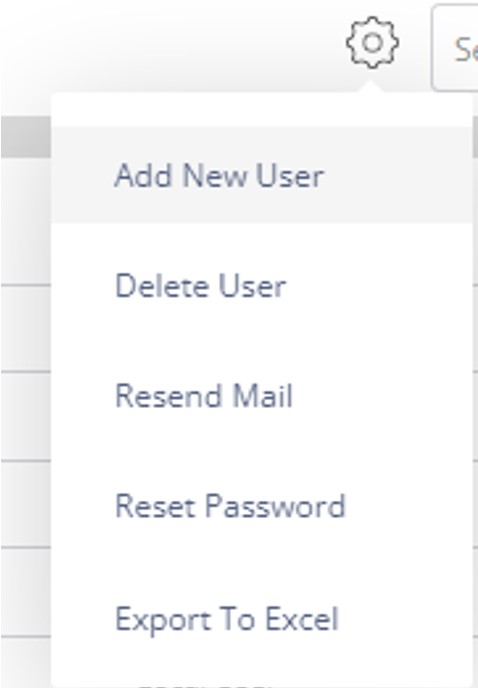
- Navigate to the module via the side pane and select ‘Add New User’ from the menu drop down.
- Enter the users First Name, Last name and Email address.
- Select the sites that the user would have access to.
- Choose the users role to define the permissions.
- Set the time zone the user is in.
- And finally set the Security checks that is linked with the user. Security check set can either be via:
- An email OTP
- SSO
- MFA
- Click on the tick mark to add the user.
Once the user has been added from the dashboard, he/she would receive an email on their email ID, with a detailed instruction on how to proceed.


Follow these steps to modify user details.
- Select the user you wish to modify from the table, and double click on the entry to view the user details
- Click on the edit button on the top right corner to edit
- You will be able to change all the details except for the users Email ID.
- Once you are happy with the changes, click on the tick mark to save, or click on the Cancel (X) button to cancel the changes.
Follow these steps to delete a user.
- Select the user you wish to delete from the users table.
- Navigate to the menu on the right and click on Delete user from the dropdown.
- Click on Yes when prompted to delete the user.
Note: This step cannot be undone. Once deleted, a user will not be able to login to the dashboard with the same credentials.
As an administrator or as a user who has appropriate privileges, you can initiate a password reset on behalf of the user. To do so,
- Select the user that you want to perform this action on for from the table.
- Navigate to the menu on the right and click on reset password from the dropdown.
- An email will be sent to the user with detailed instructions on how to reset the password.
A user will only be able to login to the dashboard if he activates his account. After an admin has created the user through the dashboard, the user would have to go to the respective email ids and complete the account activation steps.
In case a user has not received the account activation email, an admin can reinitiate the process by resending the email. To do so:
- Select the user from the table.
- Navigate to the menu and select Resend Email from the dropdown.
- The user would receive an email with detailed instruction on how to activate his account.
Note: You can resend an email only to those users who have their user’s status as pending.